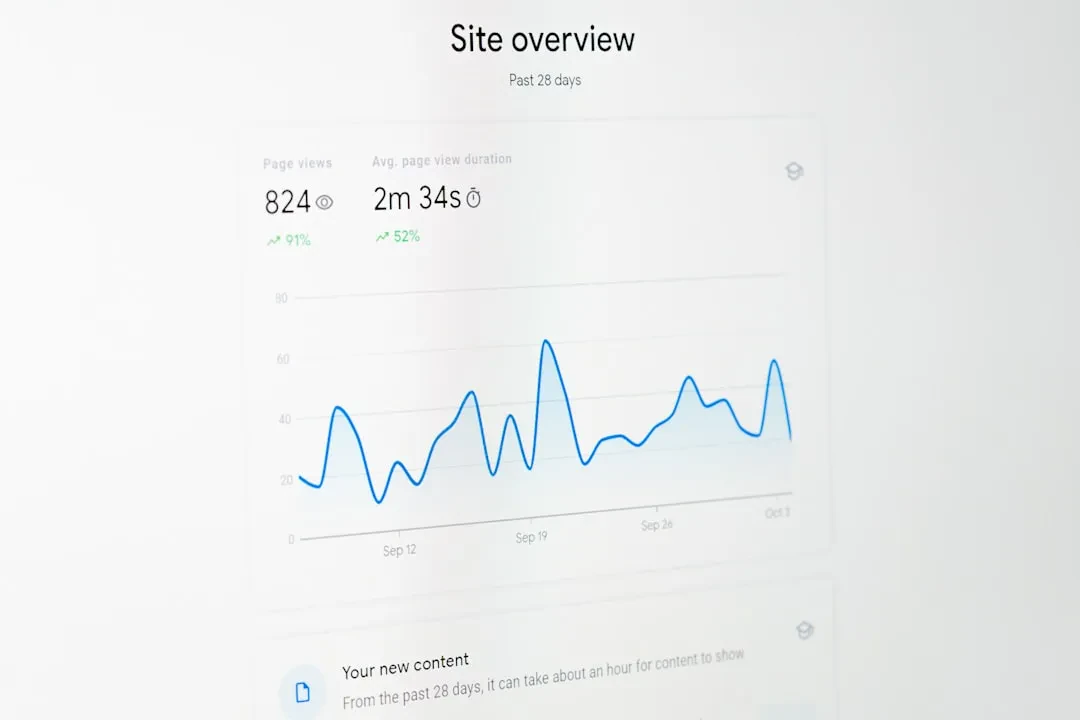
You just installed Google Analytics 4, look at the Realtime report and see a list of events: page_view, session_start, user_engagement. But what are they exactly? And if you need to track a click on an “Add to Cart” button or a form submission, how do you do it? Should you create a custom event from scratch or is there already a standard name?
The answer is simpler than it seems, but the wrong approach gives you dirty data and useless reports. We at Meteora Web have configured GA4 for dozens of clients — from small e-commerce stores to B2B service companies — and we have seen the same mistakes over and over. This guide explains the GA4 event hierarchy (automatic, recommended, custom) and how to implement them correctly, with ready-to-use code and a final operational checklist.
The GA4 event hierarchy
GA4 organizes events into three levels. Understanding the differences is the first step to avoid messing up.
Automatic events
Google collects them with zero configuration. Just drop the GA4 snippet on your site. Key examples:
page_view— every time a page loads.session_start— when a new session starts.first_visit— first ever visit of a user.user_engagement— when the page is in focus for at least 10 seconds (or other interaction signals).scroll— when the user reaches 90% page depth.click— clicks on external links (only with Enhanced Measurement enabled).
You cannot modify these events, but you can use them as building blocks for audiences or conversions. For instance: “Users who scrolled on a specific page” is an instant audience.
Recommended events
Google provides a list of predefined names and parameters for common categories (e-commerce, games, lead generation, etc.). Using them has two huge advantages:
- GA4’s built-in reports (e.g., “E-commerce purchases”) work automatically.
- Metrics are standardized — you can compare your data with industry benchmarks without headaches.
Examples for e-commerce:
view_item— product view.add_to_cart— added to cart.purchase— completed purchase.
Each recommended event has mandatory and optional parameters. For purchase, for instance, you must pass value (total), currency, and items (array of product objects). A missing parameter means empty reports or wrong numbers.
Custom events
When your action doesn’t have a recommended name — e.g., “whitepaper download”, “phone number click”, “lead magnet form submit” — you create a custom event. Important: you cannot use names already taken by automatic or recommended events. The name must be descriptive and written in snake_case (e.g., download_whitepaper).
You can attach arbitrary custom parameters (up to 100 unique parameters per event). There is no limit on the number of custom events, but too many unplanned events create noise in reports.
How to track events: two possible paths
You can implement events via gtag.js directly in the code or via Google Tag Manager. We at Meteora Web almost always recommend GTM because it lets you modify tracking without touching the site code. But if you don’t have GTM, gtag works perfectly fine.
Tracking a recommended event with gtag
// Example: add_to_cart event for e-commerce
gtag('event', 'add_to_cart', {
  currency: 'EUR',
  value: 29.99,
  items: [
    {
      item_id: 'SKU123',
      item_name: 'Meteora T-shirt',
      price: 29.99,
      quantity: 1
    }
  ]
});
Note: currency and items are mandatory for all e-commerce events. If you skip items, the “Purchases” report in GA4 stays empty.
Tracking a custom event with gtag
// Custom event: phone number click
gtag('event', 'click_phone', {
  phone: '+39 0925 123456',
  page_location: window.location.href
});
Here phone is a custom parameter. GA4 will record it in the “Events” report, and you can use it to create custom dimensions later.
Tracking with Google Tag Manager
With GTM the process is: create a “Google Analytics: GA4 Event” tag and link it to a trigger (click, form submission, scroll, etc.).
Advantage: you don’t have to write JavaScript on the site. The frontend code stays clean. The downside: you need to be comfortable with GTM and test with GA4’s DebugView.
Common mistakes we’ve seen (and how to avoid them)
- Using custom names instead of recommended ones. A client created
acquisto_effettuatoinstead ofpurchase. Result: e-commerce reports empty. We renamed it and everything worked. - Forgetting mandatory parameters. In a
view_itemevent,itemswas missing. GA4 logged the event but it was invisible in reports. - Too many custom events with no documentation. After 3 months nobody remembered what
form_submit_lead_v2meant. Tip: create a naming convention table before you start. - Not testing in Debug mode. Use
gtag('config', 'G-XXXXXXXX', { 'debug_mode': true });or GTM’s preview mode. See events in real time.
In summary — what to do now
- Map all valuable interactions on your site. Take a sheet and list: purchase, form submit, phone click, PDF download, etc. For each decide if it is recommended (check the official reference) or custom.
- Implement with GTM or gtag. Choose the path that fits your team. If you have a developer, gtag is fine. If you want flexibility, go with GTM.
- Turn on Debug mode and verify each event fires with correct parameters.
- Set up conversions. In GA4, mark key events (purchase, lead, signup) as conversions. Otherwise they won’t appear in standard reports.
- Document everything. Event names, parameters, triggers. You will thank yourself in 6 months.
We at Meteora Web do this every day for our clients. If you want a review of your tracking, reach out. But this guide gives you the tools to do it yourself — if you are a professional who wants to master GA4.
Sponsored Protocol