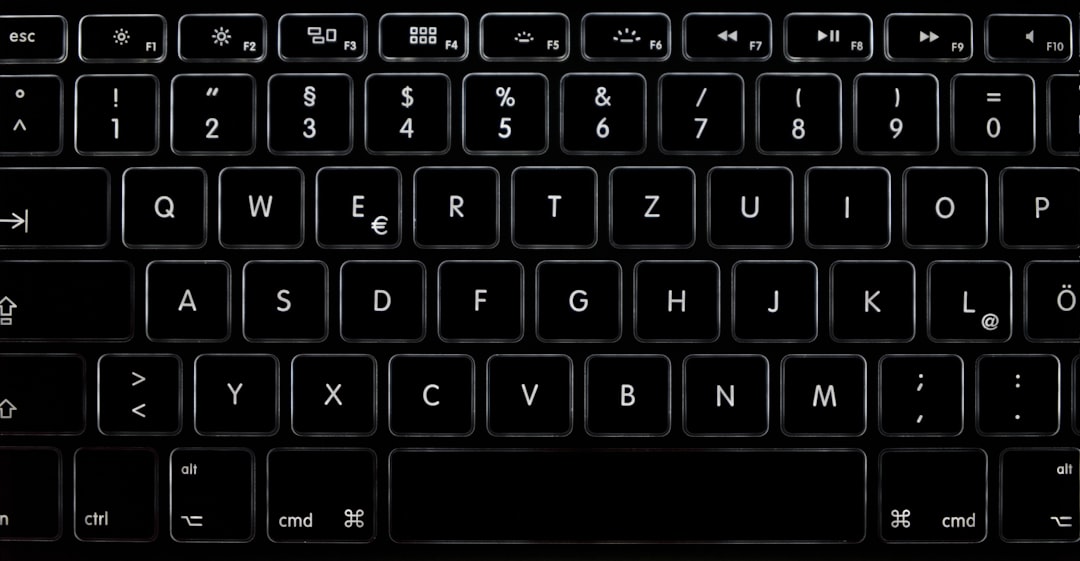
Have you ever tried navigating your website using only the keyboard? Tab, Shift+Tab, Enter. If after three tabs you have no idea where you are, you have a problem. And it's not just an inclusion issue — it's a business issue. Your visitors include people with motor disabilities, temporary conditions (a broken arm, a dead trackpad), or those who simply prefer keyboard shortcuts. In Europe, over 80 million people have some form of disability. If your site doesn't respond to keyboard commands, you're turning them away.
Here at Meteora Web, we see it every day when we audit new projects: missing skip links, invisible focus outlines, modals that trap the cursor, and users who get lost. The good news is that fixing this is simpler than you think — and it brings SEO benefits (Google rewards accessible sites) and a better user experience for everyone. This guide shows you how to set up keyboard navigation, focus management, and skip links — with real code you can copy and adapt.
Why is keyboard navigation critical for your website accessibility?
It's not about being "nice". It's about real users. WCAG requires at Level A that all content be operable by keyboard. If it's not, you're out of compliance in many countries (the European Accessibility Act applies from 2025). For small and medium businesses, that means losing public contracts and customers who consciously choose accessible sites.
Moreover, poor keyboard navigation frustrates able-bodied users too. How many times have you tried to close a popup with Esc and it didn't work? Or tabbed dozens of times to reach the search button? A logical, visible focus improves the experience for everyone.
The concrete problem: If your contact form cannot be filled without a mouse, a user with a motor disability abandons it — you lose a lead. If your shopping cart has no visible focus, users don't know where they are pressing and make wrong purchases — or give up.
What does "operable by keyboard" mean in practice?
It means every interactive element (links, buttons, inputs, menus, modals, sliders) must be reachable and activatable with Tab, Enter, Space, and where appropriate Arrow keys. It doesn't mean everything must be usable only by keyboard — you can have touch/mouse interactions too. But the keyboard path must exist.
Common mistake: Using onclick events on non-interactive elements (div, span). A <div onclick="doSomething()"> is not focusable, not seen by screen readers. Wrong. Always use native elements (<button>, <a>) or add tabindex="0" and handle keydown events.
Immediate action: Try navigating your site with only Tab, Shift+Tab, Enter, and Space. Take notes: how many elements do you reach? Where does focus disappear? Can you close popups? This manual test gives you a map of issues.
How does focus management work in web applications?
Focus is the point where the user currently is on the page. In a well-designed site, focus follows a logical order: top to bottom, left to right. But as soon as dynamic elements appear (modals, dropdowns, notifications), focus can jump randomly or, worse, get lost.
Focus management is the art of moving focus to a new element at the right time and returning it to where it was when the element disappears. It's essential for usability: when a user opens a modal, focus must be inside; when they close it, focus must return to the element that triggered it.
Tabindex: friend or foe?
tabindex can have three main values:
tabindex="0"— the element is inserted into the natural DOM order. Use only on non-interactive elements that need to become focusable.tabindex="-1"— the element is focusable only via JavaScript (.focus()), but not via Tab. This is the way to handle dynamic focus without breaking the order.tabindex="1"or higher — creates a custom order. Avoid it entirely. It breaks the natural order and confuses users and screen readers.
Rule of thumb: Never use positive tabindex. Tab order should follow the visual layout, which should follow the DOM order. If your layout differs from the DOM (columns, non-linear visual order), you have a larger accessibility problem.
<!-- Correct example: tabindex="0" on a custom focusable div (role button) -->
<div role="button" tabindex="0" aria-label="Close modal" @click="close" @keydown.enter="close" @keydown.space.prevent="close">
  X
</div>
Focus trap: containing focus in modals and popups
When a modal is open, focus must not leave the modal. If the user presses Tab beyond the last element, it must cycle back to the first (and vice versa with Shift+Tab). This is called focus trapping. It is required by WCAG 2.1 SC 2.1.2 (No Keyboard Trap) — but note: it's not trapping the user, it's helping them avoid getting lost.
// Basic focus trap for a modal (ES6)
function trapFocus(element) {
  const focusable = element.querySelectorAll(
    'a[href], button:not([disabled]), textarea:not([disabled]), input:not([disabled]), select:not([disabled]), [tabindex]:not([tabindex="-1"])'
  );
  const first = focusable[0];
  const last = focusable[focusable.length - 1];

  element.addEventListener('keydown', (e) => {
    if (e.key !== 'Tab') return;
    if (e.shiftKey) {
      if (document.activeElement === first) {
        e.preventDefault();
        last.focus();
      }
    } else {
      if (document.activeElement === last) {
        e.preventDefault();
        first.focus();
      }
    }
  });
}
Common mistake: After closing a modal, not returning focus to the element that opened it. Screen reader users end up at the top of the page. Solution: Save a reference to the triggering element (document.activeElement) and call .focus() on it after closing.
Immediate action: If you have modals or popups, test them with the keyboard: open the modal, press Tab several times — does focus ever leave? If yes, implement the trap above. On close, does focus return automatically to the button that opened it?
What are the best skip links and how to implement them?
Skip links are hidden links at the beginning of the page that allow users to jump directly to the main content, skipping navigation. They are one of the easiest WCAG Level A requirements to implement, yet often forgotten.
Why are they needed? A keyboard user, every time they load a page, must tab through all navigation links (often dozens) before reaching content. If the menu has 15 items with submenus, that's at least 15 tabs per page. Skip links reduce frustration and speed up navigation.
Basic skip link: HTML and CSS
The standard method is a link visually hidden but visible on focus. Here is the code:
<!-- Right after <body> -->
<a href="#main-content" class="skip-link">Skip to main content</a>

<main id="main-content">
  <!-- all main content -->
</main>
/* Skip link style: only visible when focused */
.skip-link {
  position: absolute;
  top: -40px;
  left: 0;
  background: #000;
  color: #fff;
  padding: 8px 16px;
  z-index: 100;
  transition: top 0.2s;
}

.skip-link:focus {
  top: 0;
}
Explanation: The link is positioned offscreen (top: -40px). When it receives focus (first Tab after page load), the :focus style moves it into view. The user sees the link and can press Enter to jump. Works in all browsers.
Advanced skip links: multiple sections
If your site has many sections (navigation, search, breadcrumbs, sidebar), you can offer multiple skip links. For example:
<nav role="navigation" aria-label="Skip navigation">
  <ul class="skip-links">
    <li><a href="#main-nav">Skip to navigation</a></li>
    <li><a href="#search">Skip to search</a></li>
    <li><a href="#main-content">Skip to main content</a></li>
  </ul>
</nav>
Caution: Don't overdo it. Too many skip links confuse users. Usually one (to main content) is enough. For complex pages, two or three at most.
Common mistake: Hiding the skip link with display: none or visibility: hidden. If hidden, it cannot receive focus and won't work. Use the off-screen technique with visible :focus.
Immediate action: Open your site in a browser and press Tab immediately after loading. Do you see a "Skip to content" link appear? If not, add one right now. It's one of the highest-impact changes with minimal effort.
How to test and fix focus and skip link issues in your project
Implementation alone is not enough — you must verify it works for everyone. Here's an operational checklist:
- Manual keyboard test: Load every page and navigate only with Tab, Shift+Tab, Enter, Space. Is the focus visible (outline, contrasting color)? Does it follow a logical order? Is every interactive element reachable?
- Screen reader test: Use NVDA (free on Windows) or VoiceOver (macOS). Navigate with Tab and arrow keys. Are skip links announced as links? After clicking, does focus actually move?
- Automated audit: Chrome DevTools → Lighthouse → Accessibility. It will flag missing skip links, invisible focus, keyboard traps. Not perfect but a good start.
- axe DevTools: Free Chrome extension. Scans the page and reports specific focus and skip link issues.
We at Meteora Web always combine manual tests with automated tools. Tools alone miss many context-dependent issues (e.g., a weak but present focus outline). Human testing is irreplaceable.
A real case: An e‑commerce client had a hero slider with links hidden under an overlay. Focus landed on them but the user saw nothing because the transparent background didn't show the outline. A simple outline: 2px solid blue fixed it. Sounds trivial, but lost cart abandonments were not trivial.
What to do next
- Test your site with the keyboard now. Open your browser, unplug the mouse (or just use Tab). Note everything: where focus disappears, where you can't select, where modals don't close with Esc.
- Add a skip link. Copy the HTML/CSS code above. Place it as the first element inside
<body>. Verify it appears on first Tab and jumps to the main content. - Check your modals and popups. Implement focus trapping and focus restoration on close. Test with Tab in a loop.
- Verify visible focus. If you use a framework (Bootstrap, Tailwind, Material), ensure
:focus-visibleis active with sufficient contrast (at least 3:1 against background). - Schedule a semi-annual accessibility audit. We offer it as a service to our clients, but you can start with Lighthouse and axe. If you need a hand, let's talk.
Remember: an accessible site is not just law‑compliant. It's a site that doesn't lose customers along the way. And for any business, every contact counts.