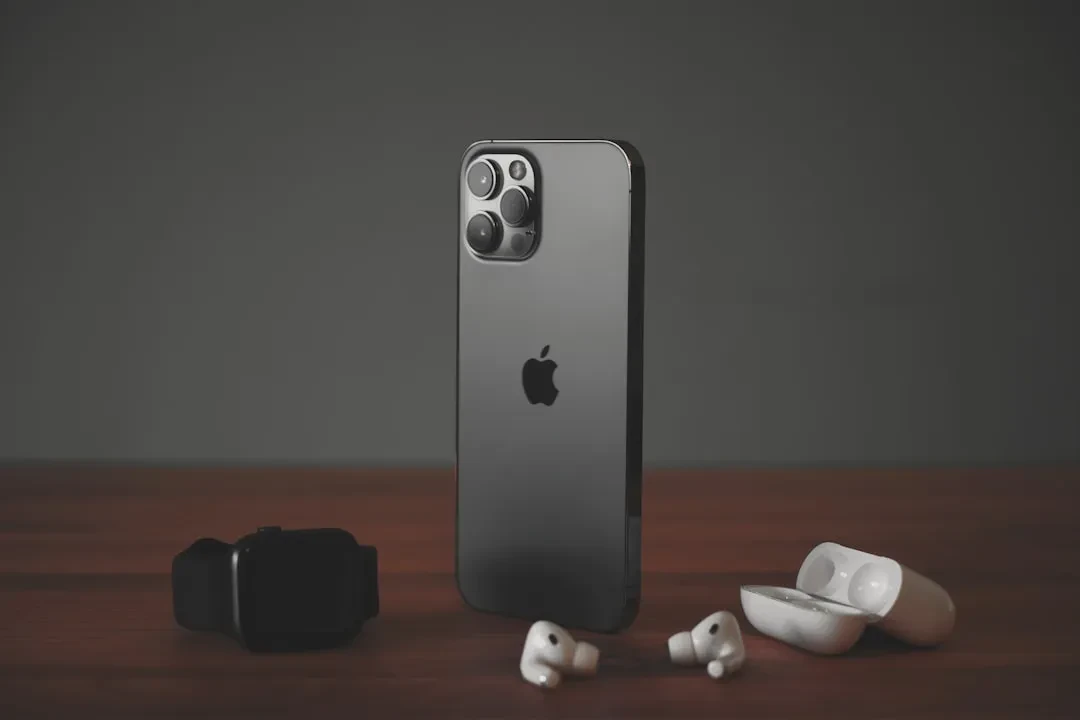
Over the years, the iPhone's operating system has grown increasingly complex, and Apple adds new features with every version of iOS that often go unnoticed. With iOS 26, the device is packed with hidden capabilities that can transform how you interact with your phone daily. This guide explores ten lesser-known tips and tricks that will help you get more out of your iPhone without installing any third-party apps.
Turn an App Icon Into a Widget
You can turn most app icons into widgets directly from the Home Screen. Simply long press on an app icon and select one of the squares at the top to choose a widget size. This works with any Apple or third-party app that supports widgets. To revert to the standard icon, long press again and select the top left icon with four squares. It is a quick way to keep information like weather or calendar events at your fingertips without cluttering your screen.
Review Your Location History in Maps
The Maps app in iOS 26 stores a history of places you have visited, which is incredibly useful when you want to retrieve the name of that great restaurant you stumbled upon during a weekend trip. To access this feature, open the Maps app, tap your profile icon, select Places, and then choose Visited Places. Locations are organized by category such as leisure or shopping, and by city. You can clear your history by scrolling to the bottom of the interface or set an automatic expiration period. To disable tracking entirely, go to Settings, then Maps, Location, and Visited Places.
Set Custom Vibration Patterns
If you keep your iPhone on silent mode, you can still identify who is calling or texting thanks to custom vibration patterns. Open the Contacts app, select a person, tap Edit in the upper right corner, then choose Text Tone or Ringtone. Tap on Haptics, and select Create New Vibration. From there, you can design a unique pattern using taps and presses. This way, without looking at your phone, you will know if it is a priority message from your boss or a casual chat with a friend.
Customize Your Lock Screen Buttons
The two buttons at the bottom of the Lock Screen do not have to launch the Flashlight and Camera. With iOS 26, you can set them to any Control Center option, including those from third-party apps. To customize, long press on the Lock Screen, tap Customize to edit your current wallpaper and Lock Screen, or tap the plus icon to create a new one. Then tap the minus icon on the apps at the left or right to remove them, and tap plus to choose something new. This is perfect for frequent actions like opening Shazam or starting a screen recording.
Back Tap Gestures
The Back Tap feature has been around for a while but is easy to overlook. It allows you to trigger an action by double or triple tapping the back of your iPhone, such as taking a screenshot, turning on the flashlight, or launching a Shortcut you have created. To set it up, go to Settings, then Accessibility, Touch, and scroll down to Back Tap. You can assign different actions for double tap and triple tap. It is a discreet and fast way to access functions without interrupting your workflow.
Screenshot an Entire Webpage
When you take a screenshot by pressing the side and volume buttons, the default captures only what is on the screen. However, if you want to save a full webpage or a long PDF, there is a hidden method. After taking the screenshot, tap the thumbnail (if you have full-screen previews turned off). Select Full Page at the top of the interface, and then choose where to save the extended screenshot. This is ideal for preserving articles or recipes without multiple captures.
Hide Apps or Entire Home Screen Pages
If you have apps you prefer not to show on the Home Screen, you can hide them individually by long pressing and selecting the Face ID option, or hide an entire page at once. To hide a page, enter jiggle mode by long pressing on the Home Screen, tap the dots at the bottom, and deselect the page you want to hide. Apps hidden this way do not appear in the Hidden folder in the App Library, but they remain accessible via Spotlight Search and within their appropriate App Library category. To unhide, follow the same steps and recheck the box.
Quick Set a Timer from Control Center
Adding the Timer to Control Center lets you set a countdown with a simple gesture. Go to Control Center, tap the plus button, choose Add a Control, and select Timer. Once added, long press the timer icon to reveal a slider that lets you select a duration from two hours to one minute. Tap Start to begin. This is handy for cooking or managing work intervals using the Pomodoro technique.
Remove Location Data from Photos Before Sharing
When you share a photo, you may not want to include the location where it was taken. To strip metadata, open the photo in the Photos app, swipe up, and tap Adjust Location, then choose No Location. Alternatively, before sharing, tap the Share button, select Options, and toggle off Location. This small step protects your privacy, especially when posting on social media.
Use a Timer to Stop Playing Media
If you fall asleep listening to music or a podcast, you can set a timer to automatically stop playback. Open the Clock app, go to Timers, set a duration, and then tap When Timer Ends. Scroll down and select Stop Playing. When the timer expires, any media that is playing will stop. This simple feature saves battery and data, making it perfect for bedtime listening.
These tips are just a glimpse into the depth of iOS 26. As Apple continues to refine the user experience, regularly exploring settings can reveal new efficiencies. For instance, customizing Lock Screen buttons can integrate with smart home devices like the new SwitchBot Matter locks we recently covered. Similarly, photo privacy settings echo the importance of AI-powered moderation tools such as YouTube's deepfake detection, now available to all adult creators. Even hiding apps parallels the whimsical utility of an app like Cats Lock for Mac, which keeps your keyboard safe from feline intruders.
In an increasingly interconnected digital ecosystem, mastering your iPhone means gaining both time and security. Whether you are a new user or a seasoned pro, these tricks will help you unlock the full potential of iOS 26. If you have discovered other hidden features, feel free to share them in the comments.
Sponsored Protocol