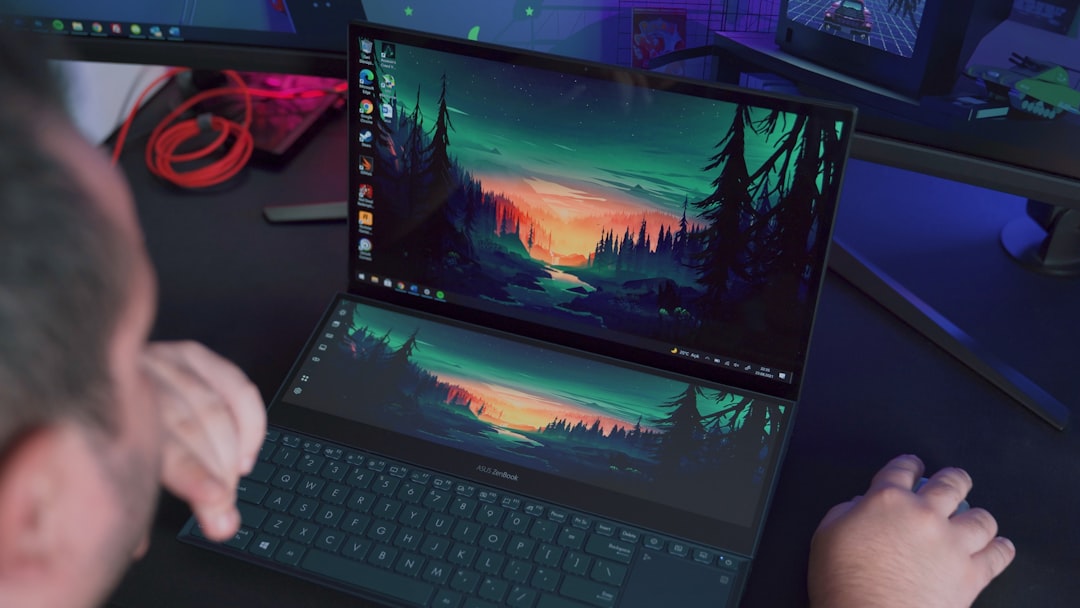
Every fresh Windows 11 installation brings with it an ecosystem of widgets, notifications, and suggestions that compete for our attention. For those who use the PC as a work tool, this constant presence can turn into background noise that undermines focus. The good news is that the operating system offers native tools to declutter the interface and make it more essential, without resorting to third-party software.
In this practical guide, we explore seven tweaks I have personally tested on numerous computers, from the lock screen to the taskbar. The goal is to create a calmer work environment where every visual element has a precise function and nothing detracts from the main task. It is not about eliminating useful features but about regaining control: notifications remain available when we look for them, but they do not interrupt us when we do not need them.
The lock screen becomes a simple access point
The Windows 11 lock screen can show weather, sports scores, and suggested content, turning into an advertising surface before we even reach the desktop. To reduce visual noise, the first step is to disable the dedicated widgets and choose a static image instead of Windows Spotlight, which sometimes offers promotional overlays. With a few clicks in Settings, Personalization, Lock screen, you can turn off the widgets toggle and select the Picture or Slideshow option. The result is a screen that shows only the time and date, ready for login without distractions.
Sponsored Protocol
The taskbar without invasive icons
The widgets icon in the taskbar is another element that draws attention with live updates of news and weather. Even though it can be useful to have quick access, the constant presence of animated content creates unnecessary visual tension. The solution is to disable the button from the taskbar, while still keeping the ability to open widgets with the Windows+W keyboard shortcut. In this way, you get a cleaner workspace but retain the functionality when needed. The procedure goes through Settings, Personalization, Taskbar, where you turn off the Widgets toggle.
Sponsored Protocol
Do Not Disturb mode to stop toast notifications
Toast notifications can interrupt the workflow with continuous popups. Enabling Do Not Disturb is one of the first moves I recommend to anyone installing Windows 11. This feature, reachable from Settings, System, Notifications, blocks popups but stores all notifications in the Notification Center, ready to be consulted when we want. For an even deeper silence, you can completely turn off notifications, but that is a drastic choice that also limits system alerts. Personally, I prefer Do Not Disturb, which strikes a balance between focus and information.
Clean the Start menu from automatic suggestions
The Windows 11 Start menu has made great strides in terms of order, but the Recommended section continues to show recent files, suggested apps, and promotional content. For those like me who use the Start menu mainly to launch applications, these suggestions are unnecessary noise. The solution is to disable the options related to recent files and suggestions from the Personalization, Start settings. With three toggles off, the menu shows only pinned apps and the full app list, making the search much more direct. You can also disable account-related notifications to avoid alerts from the account menu.
Sponsored Protocol
System search without web content
Windows Search is a powerful tool, but the search home is often polluted by news, games, and quizzes. This feature, called search highlights, transforms a utility into a content aggregator. To bring search back to its primary function, that is finding files, apps, and settings, just turn off the 'Show search highlights' toggle from the Privacy & security, Search settings. The result is a clean search window that immediately responds to commands without interposing unsolicited content.
Sponsored Protocol
Taskbar badges do not dictate the pace
Badges on taskbar icons show the number of unread notifications or download progress, but their constant presence can induce checking non-priority apps. Disabling them is simple: from Settings, Personalization, Taskbar, click on Taskbar behaviors and uncheck the 'Show badges on taskbar apps' option. This way, icons remain stable and do not signal continuous attention requests. This does not prevent receiving notifications, which remain in the Notification Center, but it eliminates that small glowing indicator that distracts the eye from work.
Fewer icons on the desktop for a clearer view
The last tweak I always apply is hiding desktop icons. Although it is common to keep shortcuts and files on the desktop, a surface full of icons increases visual clutter. With a right-click on the desktop, choosing View and unchecking 'Show desktop icons', you completely free the background. All files remain accessible in the Desktop folder, but the view is clear. This choice is not for everyone, but personally I find that it reduces visual stress and makes the desktop a more serene workplace. Many users who have tried this solution never go back.
Sponsored Protocol
These seven tweaks do not eliminate Windows 11 features but make them less invasive. The operating system remains complete and responsive, but our attention stays focused on the tasks that matter. If you also feel the need for a calmer digital environment, try disabling these features and you will notice the difference from the first reboot. Concentration is a precious resource, and Windows 11 can help us preserve it with small adjustments.