In mobile app development, the most frustrating moment isn't when you write code, but when something doesn't work and you don't understand why. It's the moment when
debugging comes into play, the practice that separates the app that crashes at the first action from the one that reaches the store with reliable behavior.
What it really means to debug
Debugging refers to the set of techniques and tools used to
identify, analyze, and fix bugs. A bug isn't just a spectacular crash, but any behavior different from the expected one. A button that doesn't respond, a list that doesn't update, an API call that doesn't return data, a layout that breaks on a certain smartphone model.
Debugging is not a final step to rush through before release, but a structural part of the development cycle. Apple, Google, and the major mobile development platforms consider debugging a core skill on par with architecture and interface design, as clearly emerges in their respective documentation for
Android Studio and
Xcode.
How debugging works in mobile apps
In practice, debugging means
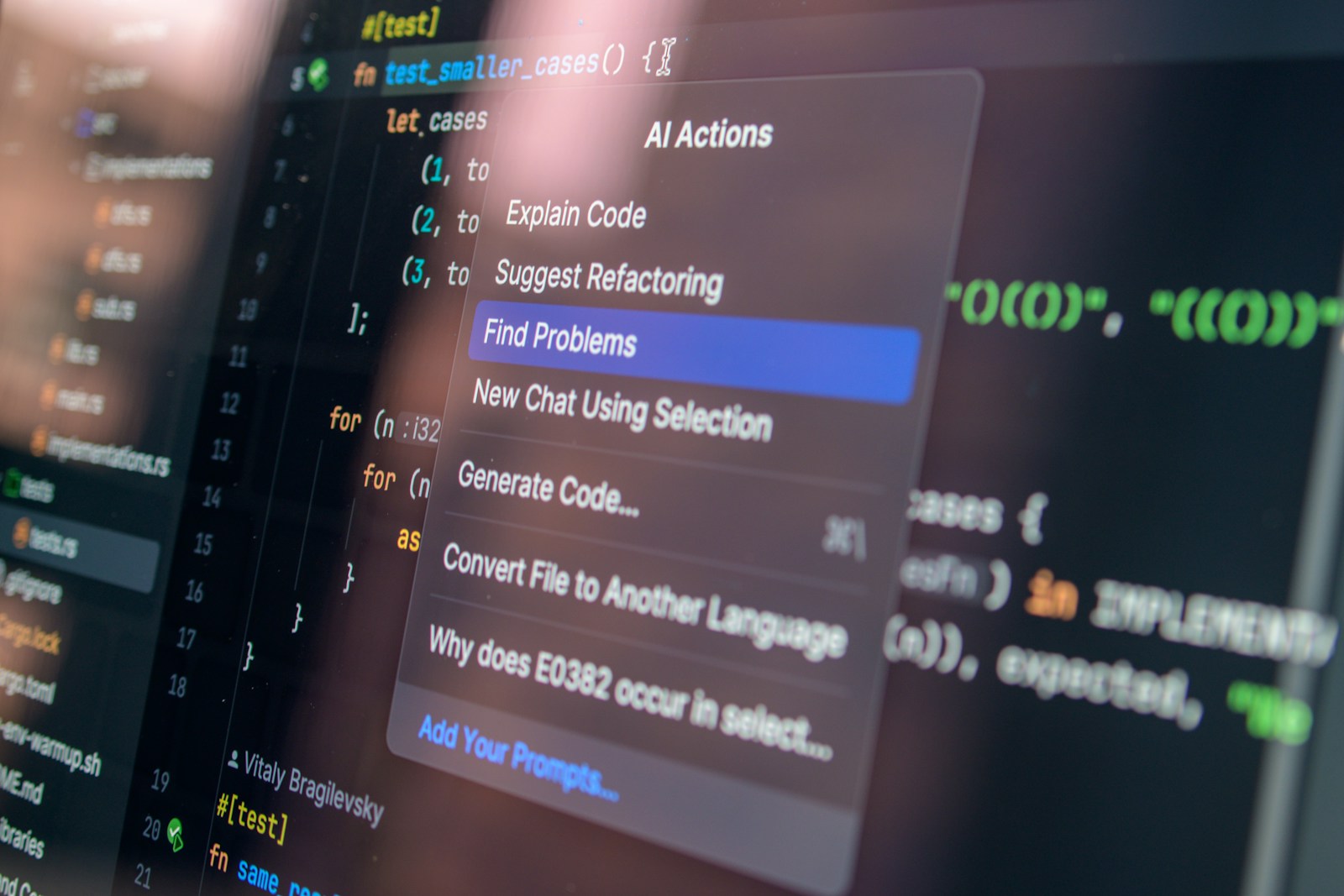
observing the code while it runs. Instead of launching the app and just seeing the final result, you enter the internal logic by checking variables, execution flow, and the response of external services. Modern tools allow you to stop the app at specific points, inspect its state, resume execution, and repeat the same scenario multiple times.
On Android, developers typically use Android Studio with its integrated debugger; on iOS, Xcode offers similar functionality. In both cases, you work with a connected real device or emulator, following the app's behavior as if under a magnifying glass.
Breakpoints, stepping, and variable inspection
The heart of interactive debugging is
breakpoints. They are bookmarks in the code where execution is interrupted. When the flow reaches there, the app stops and the debugger allows you to check variable contents, the call stack, and active threads. From that point, you can proceed one line at a time or jump to logical blocks.
A typical scenario is this: you set a breakpoint before an API call, start the app, perform the action that should generate the request, stop at the breakpoint, and look at what the request object contains. Then you proceed and verify what comes in the response. It's a way to transform the code from a black box into an observable process.
Logging, console, and error messages
You can't always be attached to the debugger. Often you work with
logs and the console, especially when investigating problems that emerge on devices distant in time or space. Logging systems allow you to insert trace points in the code to record significant events and read the sequence later.
A simplified example can be this.
fun fetchUser() {
    Log.d("UserRepository", "Starting user API call")
    api.getUser(
        onSuccess = { user ->
            Log.d("UserRepository", "User received: ${user.id}")
        },
        onError = { error ->
            Log.e("UserRepository", "Error in user call", error)
        }
    )
}
In this snippet, the logs tell you afterwards if the call started, if it was successful, what arrived, or what type of error occurred. On Android, you read them with Logcat; on iOS, through the Xcode console. In production versions, log collection and crash report services like Firebase Crashlytics, Sentry, and similar then come into play.
Emulators, real devices, and specific problems
In the
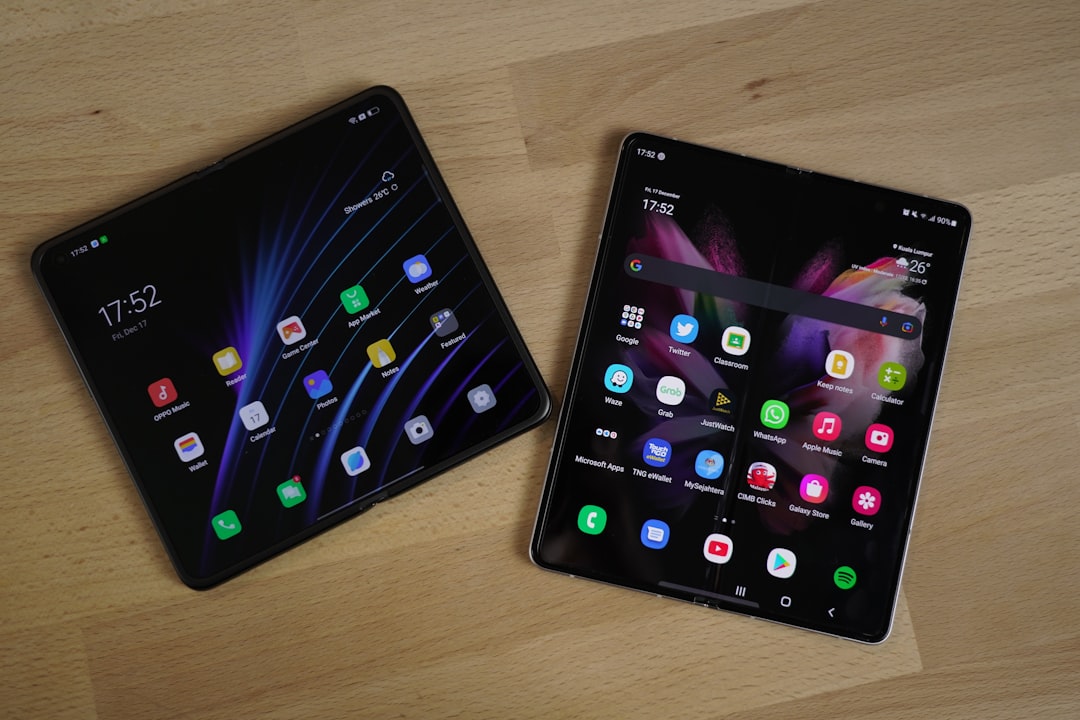
App, Mobile & Smartphone world, debugging is complicated by device fragmentation. Different resolutions, operating system versions, manufacturer customizations, specific permissions. A bug that doesn't manifest in the emulator can explode on a specific model, perhaps only in the presence of certain power-saving settings.
For this reason, effective debugging alternates the use of emulators to speed up tests with sessions on real devices, especially when problems related to sensors, push notifications, camera, or integration with other system services emerge. Mobile development tools offer instruments to capture logs and performance profiles even from devices connected via USB or network.
Crash reports, profilers, and performance
Debugging doesn't stop at functional bugs. An important part concerns
performance and consumption. An app that doesn't crash but consumes battery excessively, freezes the interface for seconds, or continuously downloads data still has a serious problem. The profiling tools integrated into Android Studio and Xcode allow you to measure CPU usage, memory, network, and UI rendering.
When the app is already in production, crash reporting systems automatically collect stack traces and context. Analyzing these reports is part of the daily debugging after release. Every crash is a story to reconstruct starting from the available data, often cross-referencing logs, reports, and user feedback.
Why debugging is essential in development
Doing debugging well means
reducing risk at every stage of the app's lifecycle. During development, it helps identify logic errors before they become hard-to-reproduce bugs. In the testing phase, it allows QA and developers to collaborate with a common language, based on repeatable scenarios and observable data. After release, it enables a rapid reaction to real problems emerging on users' devices.
In an ecosystem where apps are continuously updated, new versions of Android and iOS introduce changes, and stores don't forgive negative reviews related to crashes and malfunctions, debugging is not a nerdy optional, but a strategic skill. Writing code without a debugging culture is like building a skyscraper without planning inspections and maintenance. Sooner or later, something breaks. And it doesn't always do so quietly.