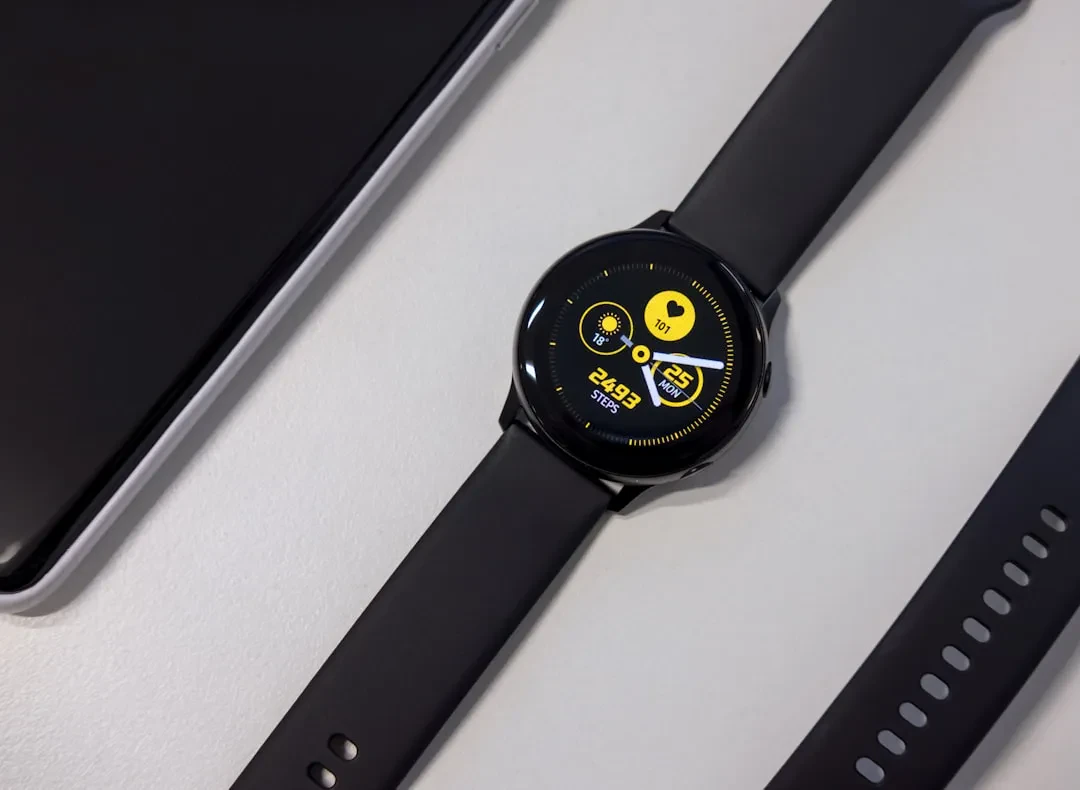
If you own a Samsung Galaxy Watch, you might think you are limited to using Samsung Pay for contactless payments. In reality, you can also use Google Wallet on these devices, provided a few conditions are met. The convenience of leaving your wallet at home and paying with a simple tap of your wrist is accessible to all owners of a modern Galaxy Watch. This guide will walk you through the steps to activate and use Google Wallet on your Samsung smartwatch, avoiding last-minute surprises.
Compatibility and Requirements
Not all Galaxy Watch models support Google Wallet. Your watch must be running Wear OS version 2.0 or newer. This excludes Tizen-based models such as the original Galaxy Watch, Galaxy Watch Active, and Galaxy Watch 3. If you own a Samsung Galaxy Watch 4 or later (Watch 5, Watch 6, Watch Ultra, etc.), you are good to go. To check your watch's software version, swipe down from the watch face to open the quick panel, tap the gear icon to go to Settings, then select "About watch" or "About device." Here you will find the Wear OS version under "Software info." Additionally, Google Wallet and its tap-to-pay feature must be available in your region: they are already supported in the US and many other countries. You can check the latest availability on Google Wallet's official help page.
Sponsored Protocol
Step-by-Step Setup
First, ensure that the Google Wallet app is installed on your Samsung Galaxy Watch. If it is not there, download it from the Google Play Store on your paired phone, and it will sync automatically. Open the Wallet app on your watch and follow the on-screen instructions to add a card. You will need to authorize access to your Google account and confirm the operation on your phone. You can add credit cards, debit cards, and loyalty cards. To set a default payment method, press and hold the side button on your watch to open Google Wallet, then tap the settings gear icon within the app. Here you can select which card to use first. Once configured, to pay, simply wake and unlock your watch (if a screen lock is enabled), press and hold the Home button to open Wallet, and hold the watch display near the contactless terminal. No internet connection is required for the transaction, as it uses NFC like a physical card. You will receive a confirmation on the watch face and a notification on your phone.
Sponsored Protocol
Benefits of Using Google Wallet over Samsung Pay
Google Wallet integrates seamlessly with the Google ecosystem, allowing you to manage not only payments but also loyalty cards, tickets, and subscriptions. It is supported by a growing number of merchants and public transport systems. If you already use Google Pay on your phone, you will find the experience consistent. However, always consider data security, a topic we explored in a related article on connected device risks: Meta Quest Discounts, Your Data: The Real Price of Augmented Reality.
Sponsored Protocol
Troubleshooting Common Issues
If a payment fails, check that NFC is enabled (Settings > Connections > NFC). Also verify that the added card is valid and not expired. Sometimes restarting the watch or updating the Google Wallet app helps. For more details on how contactless payments work, refer to the Google Wallet Wikipedia page.
Source: https://www.engadget.com/2197517/how-to-pay-with-google-wallet-samsung-galaxy-watch