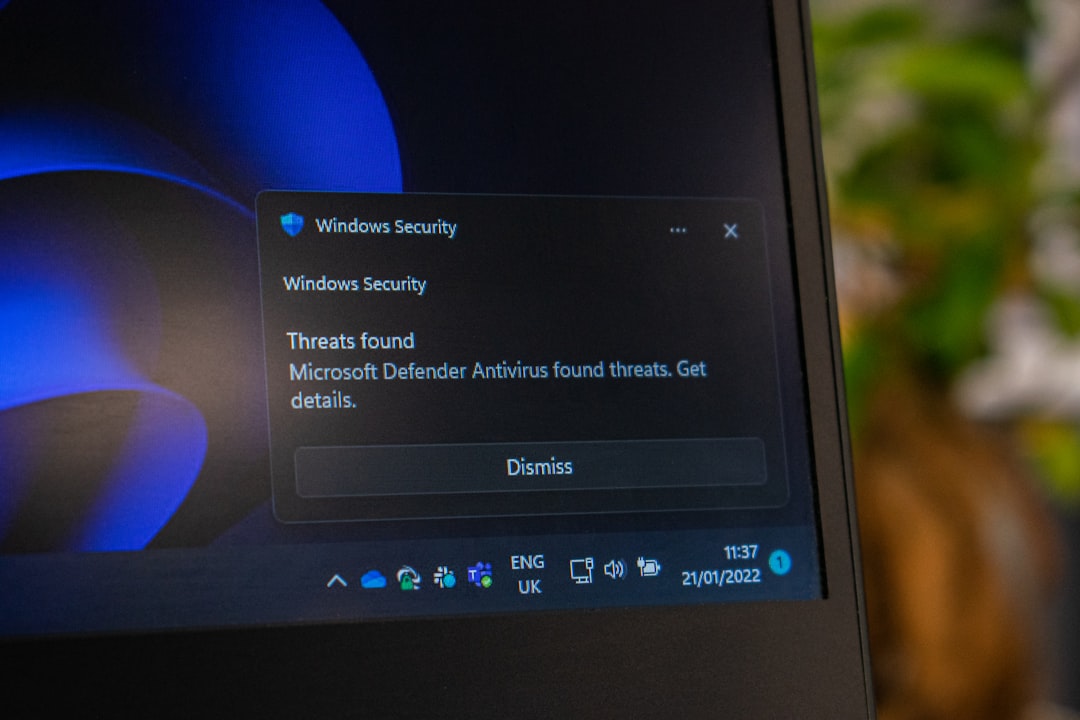
For years, I was the emergency IT support for my parents. Every week a call about a suspicious pop-up, a program slowing down the PC, or a virus compromising their data. The solution wasn't to fix each problem but to prevent them. After configuring a set of Windows security settings, the calls dropped by 90%. Here is the checklist I prepared for them that anyone can adopt.
Enable Windows Defender and scheduled scans to block threats automatically
The first step is to ensure Windows Defender is active and set to run periodic scans. Open Settings, Update and Security, then Windows Security. Verify that real-time protection is enabled. Schedule a weekly quick scan and a monthly full scan. This way, most malware is caught before it can cause damage. Never disable Defender unless you have a reliable third-party antivirus, but even then, it is better to keep both active for layered defense.
Sponsored Protocol
Disable automatic startup apps to reduce vulnerabilities
Many programs start automatically when the PC turns on, consuming resources and potentially opening ports to exploits. Use Task Manager (Ctrl+Shift+Esc) and click the Startup tab. Disable all unnecessary applications, especially those you do not recognize. Reducing background programs improves both security and system speed. For my parents, I left only essential software like the email client and browser.
Set up a standard user account to limit system privileges
The most common mistake is using an administrator account daily. Create a standard user account for family members. Go to Settings, Accounts, Family and other users, then Add an account. Set the account type as Standard. With a standard account, even if malware is downloaded, it cannot install without permission. For system changes, an administrator password is required, which I keep secret. This simple measure has stopped dozens of infection attempts.
Sponsored Protocol
Block unauthorized software installations with parental controls or group policies
Windows allows restricting app installation via Parental Controls or Group Policies (for Pro versions). Enable 'Allow apps only from the Microsoft Store' or configure custom rules. Also, disable execution of .exe files downloaded from the Internet without approval. Use Smart App Control, a feature that automatically blocks unsigned or suspicious applications. This setting prevents installation of adware and unwanted tools, as happened recently with LG installing McAfee via monitors (a case covered in a related article).
Keep the operating system updated with automatic updates
The most dangerous vulnerabilities are closed with security updates. Ensure Windows Update is set to automatic. Verify that driver and firmware updates are included. Delaying updates is the fastest way to fall victim to known exploits. For my parents, I scheduled automatic installation during the night so they do not have to worry about anything.
Sponsored Protocol
Configure Windows Firewall to filter incoming traffic
The default Windows Firewall blocks unsolicited connections. Go to Windows Security, Firewall and network protection. Verify that the firewall for private and public networks is active. For extra protection, disable unnecessary exceptions. A well-configured firewall prevents malware and hackers from establishing remote connections to the PC. In the case of targeted attacks like those by Russian groups described in other articles, the firewall can make a difference.
Use Microsoft Edge with SmartScreen and block dangerous downloads
The browser is the entry point for most threats. Set Microsoft Edge as default browser and enable Microsoft Defender SmartScreen. Go to Edge settings, Privacy and services, and enable SmartScreen to block malicious sites and downloads. Disable automatic file downloads. SmartScreen has blocked dozens of phishing attempts for my parents. Additionally, install an ad-blocker to reduce the chance of clicking on malicious ads. With these settings, emergency calls have practically ceased. For further Windows customization, I found the guide on remapping the Copilot key helpful, showing how to tailor the system to your needs. And do not forget to check the official Microsoft documentation for updated security best practices.
Sponsored Protocol
Source: https://www.windowscentral.com/microsoft/windows/windows-security-cheat-sheet-family-it