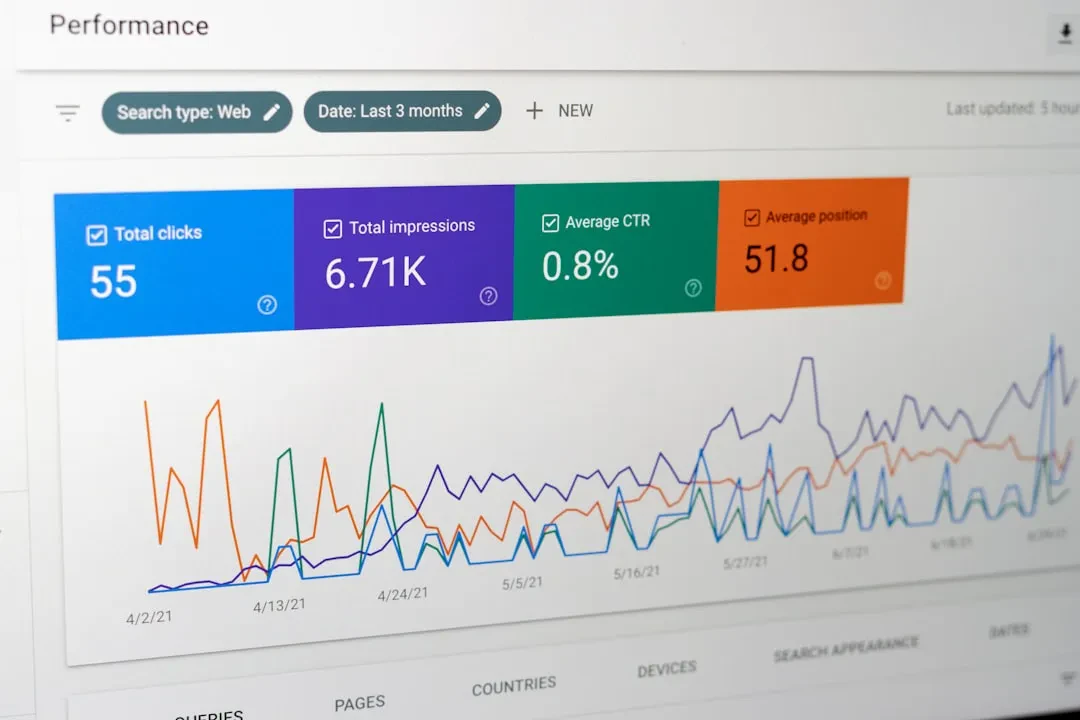
Your site has 10,000 pages, but Google indexes only 500. You have quality content, but nobody finds it. It's not a content issue: it's a crawl budget problem. Googlebot doesn't crawl forever: it has limited resources per site. If you waste those resources on useless pages, important ones stay out. At Meteora Web, we see it daily: sites with 50,000 URLs from filters, parameters, internal search pages, print versions. Then people wonder why product pages don't appear on Google. Good news: you can optimize it. And you do it with logic, not magic wands.
What is Crawl Budget (And Why It Matters)
Crawl budget is the number of URLs Googlebot scans on your site in a given period. It depends on two factors: crawl rate limit (how fast Googlebot can scan without overloading the server) and crawl demand (how important Google considers your pages). If your server responds slowly, Google slows down. If you have low-quality pages, Google scans less. Result: new or updated pages stay in queue.
Concrete Example
An e-commerce with 5,000 products, 5 sizes and 3 colors per product = 75,000 variant URLs. Each variant has a unique page. Add filters per category, search pages, category pages with sorting. Total: 200,000 URLs. Googlebot has a budget of, say, 1,000 URLs per day. In 200 days it scans everything, but in the meantime new items are not seen. Pure waste.
Three Pillars of Crawl Budget Optimization
1. Remove Useless URLs
Every URL that should not be indexed must be blocked. Not just with noindex, but directly with robots.txt or proper canonical tags. URLs to eliminate:
- Internal search pages (e.g.,
/search?q=shoes) - Tracking parameters (e.g.,
?utm_source=facebook) - Print versions, filter pages with no added value
- Pages with thin or duplicate content
- Session-based URLs (e.g.,
?session_id=abc)
Action: Go to Google Search Console → Reports → Crawl stats. Look for URLs scanned with errors (404, 301, 500). Those are black holes. Block them in robots.txt or fix internal links.
2. Optimize Server Speed
Googlebot waits. If the server takes 3 seconds to respond, Googlebot reduces the rate. If response time is under 200 ms, Googlebot speeds up. It seems small, but over 10,000 URLs it makes a difference. We've seen sites go from 200 URLs scanned per day to 3,000 after optimizing TTFB and enabling HTTP/2.
# Example TTFB test with curl
curl -o /dev/null -s -w "Connect time: %{time_connect}s\nTTFB: %{time_starttransfer}s\nTotal: %{time_total}s\n" https://yoursite.com
Action: Use curl above or tools like PageSpeed Insights to measure TTFB. Target: under 300 ms. If it exceeds 500 ms, talk to your hosting or switch to a better server (we use dedicated servers optimized for WordPress and Laravel).
3. Prioritize Important Pages
Not all pages deserve the same budget. Use XML sitemap to signal main pages. Update the sitemap every time you publish new content. Googlebot reads it and gives priority to listed URLs. The sitemap doesn't force crawling, but it helps. Also use internal links: pages with more internal links are crawled first. It's about architecture.
Practical Tools to Monitor and Optimize
Google Search Console — Crawl Stats
Here you see exactly how many requests Googlebot makes per day, average response time, errors. We check this weekly for every client. If you see a spike of 404 errors, you have broken links or poor redirects. If response time is high, it's time to fix the server.
Log Analysis
The most accurate method: analyze server logs to see exactly which URLs Googlebot scanned, how often, and with what result. Tools like Loggly or GoAccess (free) can do it. If you notice Googlebot scanning the "contact" page 50 times a day and never the product pages, you have a link architecture problem.
# Quick analysis with grep and awk
cat access.log | grep "Googlebot" | awk '{print $7}' | sort | uniq -c | sort -nr | head -20
Action: If you have log access, run the command above. If not, ask your hosting. Logs don't lie.
robots.txt and Meta Robots
Do not block CSS or JS (Googlebot needs them to render the page). Block only dynamic URLs without value. Example optimized robots.txt:
User-agent: *
Disallow: /search/
Disallow: /tag/
Disallow: /page/
Disallow: /*?utm_
Disallow: /*?session_
Sitemap: https://yoursite.com/sitemap.xml
Note: Do not use Disallow: / unless you want to exclude everything. And never block CSS/JS files: Googlebot needs them for rendering.
Common Mistakes and How to Avoid Them
Too Many Redirect Chains
A page that goes 301 → 302 → 200. Googlebot follows each redirect, consuming budget. If you change domain or structure, use a single direct redirect.
Unmanaged Tracking Parameters
URLs like ?ref=newsletter generate infinite variants. Use rel="canonical" to point to the clean version, or configure them in Search Console → Settings → URL Parameters.
Orphan Pages
Pages with no internal links. Googlebot only discovers them via sitemap or external links. But if you have no backlinks, they might never be crawled. Ensure every important page is reachable within a click from the homepage (or nearly).
When Crawl Budget Is Not the Issue
If you have fewer than 1,000 pages, crawl budget is rarely a bottleneck. The real problem is Google not deeming your pages important because of low quality, weak links, or duplicate content. Optimizing crawl budget makes sense when you have tens of thousands of URLs and Google scans only a fraction. First, make sure your content is good.
In Summary — What to Do Now
- Check crawl stats in Search Console: response time, errors, total URLs scanned per day.
- Block useless URLs in robots.txt and sitemap. Use the
curlcommand to test TTFB. - Analyze logs to see where Googlebot wastes budget (example grep + awk).
- Optimize internal links: important pages should have more internal links than secondary ones.
- Update your sitemap with every new content.
At Meteora Web, we do this daily for our clients. If you need a hand, we know where to dig. But you can start alone: begin with Search Console and logs. The rest will follow.
Sponsored Protocol