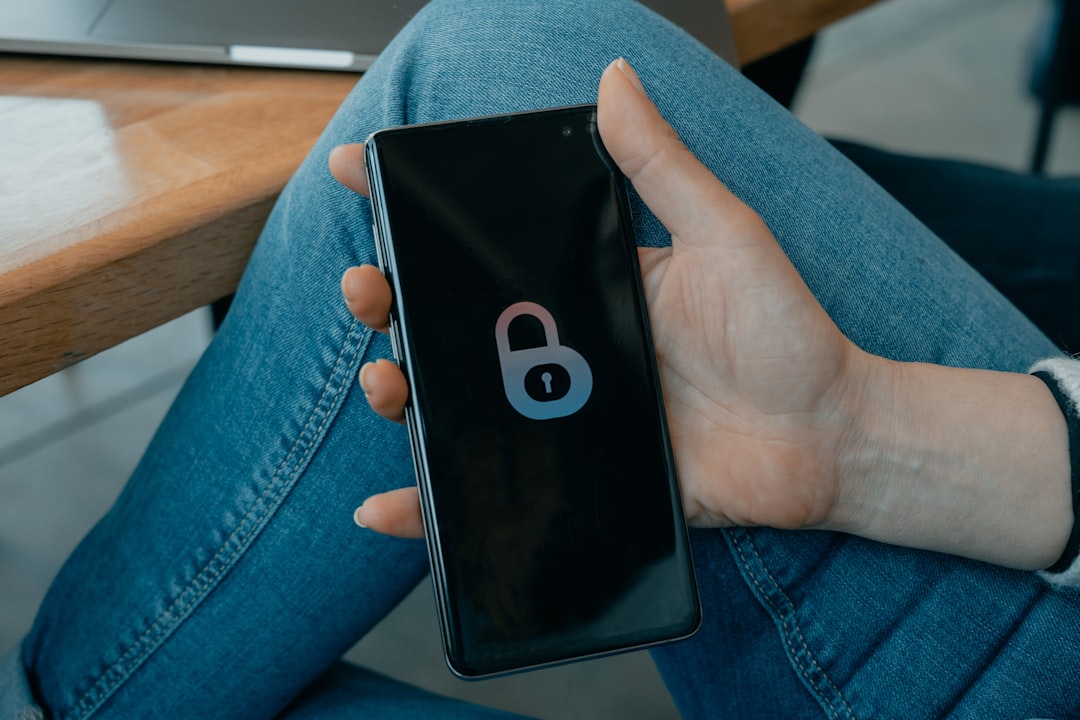
When I decided to protect my sensitive documents, the first solution that came to mind was a paid vault app. Then I discovered that my Android smartphone already had everything I needed, hidden in plain sight. The protected folder in Files by Google, known as Safe Folder, offers free and reliable protection without extra costs. This feature, available for a while, allows you to store files in an encrypted space accessible only via PIN, pattern, or fingerprint. I decided to test it thoroughly to see if it can truly replace dedicated apps.
How to activate Safe Folder in a few taps
Activation is surprisingly simple. Open Files by Google, go to the Browse section, and scroll down to Collections. From there, tap Safe Folder and follow the setup process, which requires setting an unlock method. Once activated, you can move photos, videos, documents, and other files from internal storage or SD card. The process is immediate and does not require an internet connection, so your data never leaves the device. In this way, the folder becomes a true personal vault, always at hand.
Sponsored Protocol
Encryption ensures data security
Safe Folder leverages Android's encryption, ensuring that files are protected even if the phone is lost or stolen. The data is encrypted with your Google account, but it is not uploaded to the cloud unless you explicitly choose backup. This means privacy is preserved, unless you decide to sync the folder with Google Drive. In that case, files are also protected in the cloud, but keep in mind they are entrusted to Google's servers. For most users, this dual protection is more than sufficient.
Comparison with paid vault apps
I compared Safe Folder with popular apps like Keepsafe and AppLock. Paid apps often offer extra features such as decoy photos, intrusion detection, or automatic cloud backup. However, for the primary need of hiding and protecting files, Google's solution is equally effective. Moreover, there are no space limits, apart from the free space on the device, and there are no ads. The only downside is that you cannot protect individual apps, only files. If your goal is to hide photos and documents, Safe Folder is an excellent choice.
Sponsored Protocol
Tips for daily use and known limitations
To make the most of Safe Folder, I recommend regularly moving sensitive files and avoiding leaving them in main storage. Keep in mind that if you uninstall Files by Google or perform a factory reset without backup, the files in the folder will be lost. So, if you have important documents, enable backup to Google Drive or export them to an external device. Additionally, Safe Folder is not available on all Android devices, but only on those with Android 5.0 or later and Google Play Services. Despite these limitations, Files by Google's protected folder represents a practical and free solution for file security.
Sponsored Protocol
Discovering that the vault was already on my phone saved me money and time. If you are also considering buying an app to protect your data, take a look at Files by Google first. You might find that the solution you were looking for was already there, ready to use. And if you want to learn more about managing your digital content, read also the article on Google and digital content ownership.
Source: https://www.androidpolice.com/built-personal-document-vault-out-of-file-by-google-safe-folder