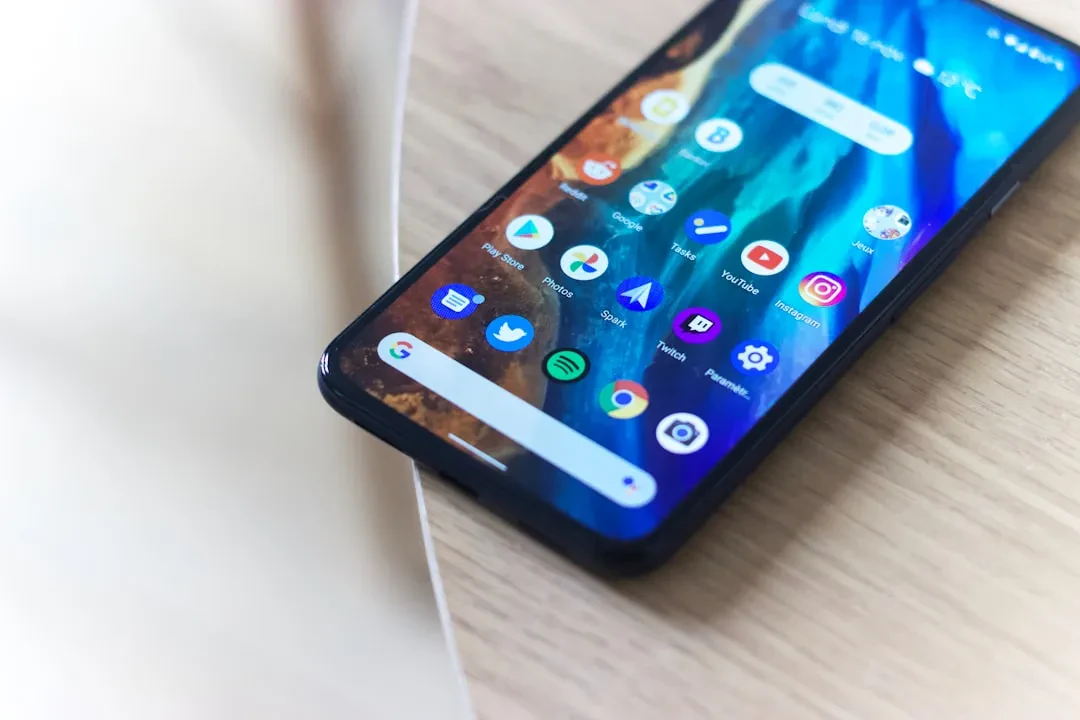
Pixel owners have always appreciated a clean experience, free from unnecessary bloatware and intrusive advertisements. This has long been a defining feature of Google's smartphone lineup, clearly distinguishing it from the competition. However, with the launch of the Pixel 11 series, many users have begun receiving promotional notifications directly on their devices, even on older models. This is a subtle yet significant shift that deserves attention and can be managed easily and quickly.
The culprit is the My Pixel app, the successor to Pixel Tips. This application, originally a simple collection of tips and guides to help users get the most out of their phones, underwent a transformation in the past year. In addition to advice and notifications about new features, it now includes a Store section dedicated to purchasing Google hardware directly from the device. The presence of an integrated store is not inherently a problem, but the appearance of unsolicited advertising notifications has raised more than a few eyebrows among users.
Sponsored Protocol
Ads appear in the notification shade without user consent
One of the most common complaints is that these communications arrive without any explicit authorization. Many users have reported receiving ads for the new Pixels right after a factory reset or without ever having opened the My Pixel app. In essence, Google has begun using the system notification tray as a promotional channel, a strategy that closely resembles that of Samsung but which Google had previously avoided.
The good news is that there is a way to block these ads without uninstalling the app or losing useful features. Android has long offered a system of notification channels, also known as categories, that allows granular control over the types of messages an app can show. This tool, introduced with Android 8.0, proves particularly effective for filtering out unwanted communications.
Sponsored Protocol
How to disable promotional notifications in a few steps
To eliminate ads from the My Pixel app, simply go to the app's notification settings and turn off the specific category labeled "New products and offers." This will block ads while still allowing updates on new features, order notifications, and other informative content. It is a quick and reversible process that requires no special technical skills.
Going further into the settings, you can decide to keep only the notifications you care about, such as those about new Android features or order status. This level of customization is one of Android's strengths and allows each user to tailor the experience to their needs without missing out on anything important.
Sponsored Protocol
The risk of a slippery slope for the future of Pixel
While a single ad may seem trivial, it raises questions about the future. Google produces and promotes an ever-expanding range of devices, from smartphones to accessories like earbuds and smartwatches. With more products, it is likely that promotional notifications will become more frequent, potentially eroding the reputation for cleanliness that has always distinguished Pixels.
The question arises: where will it end? Could we see a gradual introduction of ads in other services, such as Gemini or Google Assistant? For now, users have the tools to defend themselves, but it is essential that Google maintains transparent communication and respects the choice of those who prefer an ad-free experience. Notification control is a right every user should have, and in this case, it is still possible to exercise it.
Sponsored Protocol
In a landscape where user trust is increasingly valuable, managing these dynamics will be crucial. To delve into the topic of trust and misinformation, you might read our article on why you share false things even if you're smart. The ability to distinguish what is true from what is advertising is an increasingly necessary skill.
In conclusion, turning off ads on Pixel is simple, but the underlying issue remains. Unsolicited advertising is a signal that deserves attention, and every user should feel free to decide what to see and what not to see. For now, the solution is within reach, but only time will tell if Google can maintain a balance between promotion and respect for the user.
Source: https://www.androidauthority.com/ads-on-pixel-phones-how-turn-off-3699375