 Ing. Calogero Bono
Your WordPress site goes down at three in the morning. Or worse: it doesn't go down, but someone has been getting in for months. In our experience, the culprit is rarely the WordPress core — it's a plugin. A forgotten add-on, never updated, with a public vulnerability. This guide tackles the real problem: how to monitor plugin CVEs and apply critical updates before someone exploits them.
Why is a vulnerable plugin a concrete threat to WordPress?
Plugins account for over 90% of reported WordPress vulnerabilities. The reason is simple: the core is maintained by a small team and tested by thousands of developers. Plugins, on the other hand, are written by anyone — from structured companies to solo developers who haven't touched their code in years.
An attacker doesn't need to guess anything. CVEs are public. Open databases let anyone search for "plugin + version + vulnerability" and find ready-made exploits. A plugin with a known CVE is an open door with the address written on it.
We see it often in projects that come to us: installations with 40 plugins, 15 of which have never been updated. The site works, pages load, no visible issues. But an automated scan finds the flaw. And the bots scanning the network constantly will find it before you do.
The cost of an incident is always higher than the cost of prevention. A compromised site means: cleanup (hundreds or thousands of euros), downtime, loss of trust from customers and Google. An updated plugin, on the other hand, costs nothing.
Common mistakes that increase the risk
The first mistake is installing abandoned plugins. If the last update was two years ago, that's a vulnerability waiting to be discovered. The second mistake is updating randomly: you update when you remember, not when a security patch comes out. The third mistake is not having an inventory: if you don't know which plugins you have installed, you can't know which ones are at risk.
A vulnerable plugin is technical debt that pays itself off — with interest.
How do CVEs work for WordPress plugins?
A CVE (Common Vulnerabilities and Exposures) is a public identifier for a security vulnerability. Each CVE has a CVSS score indicating severity: from 0 to 10, where 10 is critical. For WordPress plugins, CVEs are assigned by organizations like WPScan (by Automattic) and MITRE, then published in the NIST NVD database.
The flow is almost always the same: a researcher finds a flaw, reports it, a CVE is assigned, and the plugin team publishes a fixed version. The problem is the time between the CVE disclosure and the update being applied on your site. In that window, you're exposed — and attackers know it.
Why the CVSS score is not enough
The CVSS score tells you how severe a vulnerability is, but not how likely it is to be exploited. A 5.0 vulnerability in a backup plugin you don't use is less urgent than a 7.5 in a contact form exposed on every page. Priority depends on context: which plugin, where it's used, what data it handles.
That's why our internal rule is simple: no plugin with a public, exploitable CVE stays active for more than 48 hours. If the patch doesn't exist, the plugin gets deactivated or removed.
Which tools should you use to monitor plugin vulnerabilities?
Manual monitoring is a trap. Nobody checks the CVE database every day for dozens of plugins. You need automation. Here are the tools we use, ranked by value-for-effort.
WPScan: the reference scanner
WPScan is Automattic's official scanner. It scans your site and compares installed plugins against the WPScan vulnerability database. It runs from the command line and integrates well into automation scripts.
Basic example without an API key:
# Basic scan with WPScan
wpscan --url https://yoursite.com --api-token YOUR_TOKEN
The output shows detected plugins and associated vulnerabilities. With the API token (free for personal sites), you get full access to the CVE database.
Another tool we use: Patchstack. It provides a web application firewall and a vulnerability database. The free tier lets you receive email notifications when an installed plugin has a vulnerability. The paid tier adds virtual patching — it blocks exploits even when the plugin hasn't been fixed yet.
How to automate checks on Linux servers
On the servers we manage, we add a cron job that runs WPScan every night and emails a report. Here's a minimal script you can adapt to your environment:
#!/bin/bash
# WordPress plugin vulnerability monitoring script
# Run via cron: 0 3 * * * /usr/local/bin/wp-plugin-scan.sh

SITES=("https://example1.com" "https://example2.com")
TOKEN="YOUR_WPSCAN_TOKEN"
EMAIL="admin@example.com"

for SITE in "${SITES[@]}"; do
  REPORT=$(wpscan --url "$SITE" --api-token "$TOKEN" --format cli 2>/dev/null)
  echo "$REPORT" | mail -s "Vulnerability report: $SITE" "$EMAIL"
done
The script scans each site and emails the result. On days when the report shows no vulnerabilities, you ignore it. The day it shows one, you act.
How to handle critical updates without breaking the site?
Updating a plugin may seem simple, but a badly managed update can break the site or cause conflicts. The fear of breaking the site is the main reason many don't update. That fear is understandable — but the solution is not to avoid updating. It's to update with a process.
Before updating: backup and staging
Rule number one: no update without a backup. Before updating a critical plugin, take a full backup of files and database. With a tool like UpdraftPlus or from the command line using wp-cli:
# Backup the database via wp-cli
wp db export backup-before-update.sql

# Backup files via tar
tar -czf backup-files.tar.gz wp-content/
If a staging environment exists, update there first. Check that the site works — pages, contact form, checkout if you run an e-commerce. Then update in production.
Manual vs automatic updates
WordPress automatic updates work, but only for plugins in the official repository. Premium plugins (commercial themes and plugins) require manual updates or a license system. Our advice: enable automatic updates for minor plugins and handle critical ones manually — those that manage payments or sensitive data.
To enable automatic updates via wp-cli:
# Enable auto-updates for a specific plugin
wp plugin auto-updates enable plugin-name

# Enable auto-updates for all plugins
wp plugin auto-updates enable --all
But be careful: with critical plugins, we prefer to update manually right after verifying compatibility. The process is: read the changelog of the new version — if it contains "security fix," the update is an absolute priority.
The edge case: vulnerable plugin with no patch available
It happens more often than you think. A plugin has a public CVE, but the developer hasn't released a fixed version — or has abandoned the project. In that case, the choice is clear: if the plugin isn't essential, uninstall it. If it is essential, look for an actively maintained alternative. Keeping a vulnerable plugin because "we need it" is a losing bet.
What are the warning signs of an at-risk plugin?
Not all vulnerabilities have been discovered yet. Some plugins look safe but are ticking time bombs. Recognizing risk signals is a skill built with experience. Here are the four indicators we always check:
Last update date: if it exceeds 12 months, the plugin is at risk of abandonment. Active installation count: a plugin with 100 installations is a much easier target than one with 1 million. Developer reputation: search for the author's name, their history, whether they respond to reports. Declared compatibility with the WordPress version: if the plugin doesn't declare compatibility with recent core versions, that's a red flag.
The uncomfortable truth: the most dangerous plugin is not the one with a published CVE. It's the one that's no longer maintained — and nobody knows it.
How to respond when you discover an active vulnerability?
You received the alert: an installed plugin has a critical CVE. What do you do in the next minutes? Follow this checklist, the same one we use when working on client projects.
First: check if an updated version of the plugin exists. If it does, update immediately following the process described above — backup, update, test. Second: if the patch doesn't exist, assess exposure. Is the plugin active? On which pages? Does it handle sensitive data? If the answer is "yes" to any of these, deactivate it temporarily. Third: monitor access and security logs. Look for unusual login attempts, suspicious file modifications, new administrator users. An attacker who exploited a vulnerability always leaves traces.
If the site is already compromised, don't improvise. Disconnect the site from the internet (you can put a maintenance page at the server level), run a full scan with a tool like Wordfence, and consider restoring from a clean backup taken before the compromise.
In summary
Plugin vulnerabilities are the number one threat to WordPress. But they're also the easiest to neutralize — if you have a process. Here are the immediate actions to take now:
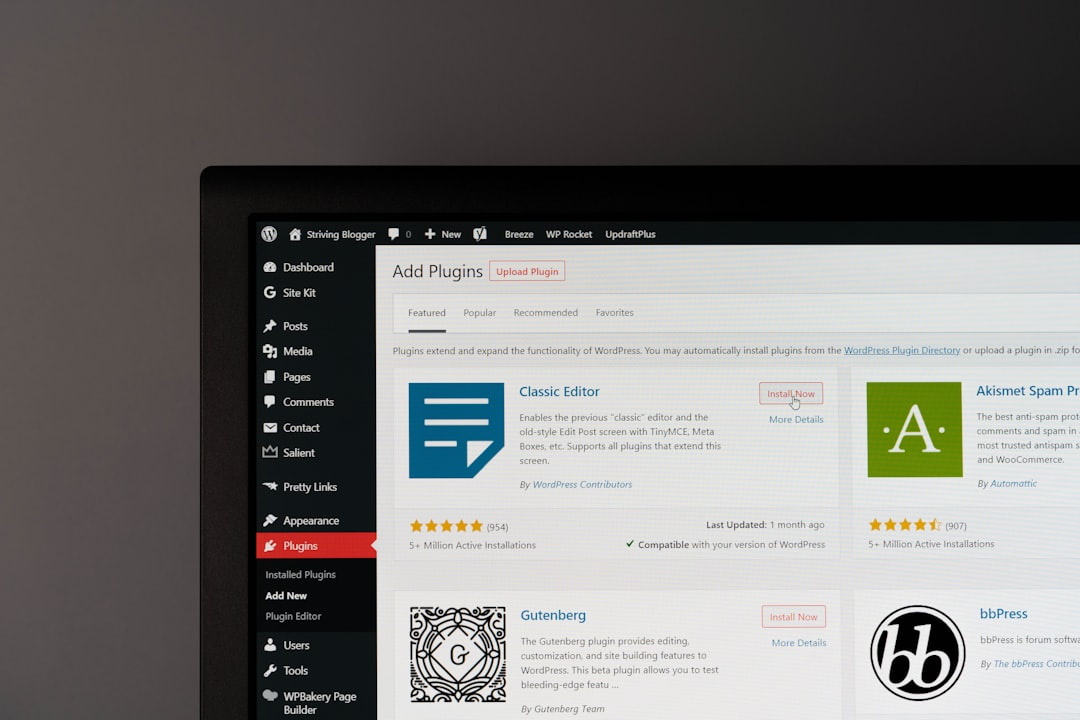
1. Inventory all installed plugins and their versions. Use the WordPress Plugins page or from the terminal: wp plugin list.
2. Remove unused plugins. Every inactive plugin is a useless attack surface.
3. Set up automatic CVE monitoring with WPScan or Patchstack. If you manage sites from a Linux server, set up a cron job with the script we showed you.
4. Define a critical update procedure: backup, staging update if possible, verification, production update. Write it down and follow it every time.
5. Check the last update dates of your plugins. Anything dormant for over 12 months must be replaced or removed.
If your WordPress site is the heart of your business, plugin security isn't an option. It's your responsibility — and if you don't have the time or skills to manage it, that's exactly the kind of work professionals exist for. We work on this every day. If you want, we can help.